

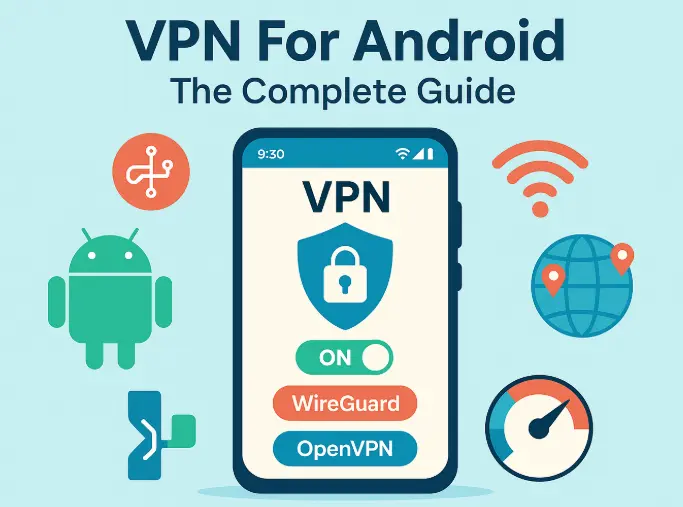
This guide shows exactly how to set up and use a VPN on Android with the right settings for speed, battery life, and privacy. It includes quick install steps, best practice for streaming and travel, and simple fixes for common problems. I tested this across several Android phones and tablets on home broadband, public Wi Fi, and a hotel network, so everything here is practical and easy to follow. 📱
Why Use A VPN On Android
- Privacy on public Wi Fi so coffee shop snoops see nothing useful
- Safer logins when you move between mobile data and Wi Fi
- Region control for streaming and news while you are abroad
- Less tracking when combined with a blocker or secure DNS
Quick Install
- Open Google Play and search for your VPN provider
- Install the app then open it
- Sign in and allow the VPN connection request
- Tap Connect for a quick start or choose a country first
That is the fast path. The next sections tune the app so it stays fast and stable.
The Best Settings For Android
- Protocol: Start with WireGuard for speed and low battery use. If a network is fussy, switch to OpenVPN. Try UDP first, then TCP if needed
- Auto connect: Enable on app launch and on unsecured Wi Fi so you are always protected
- Kill Switch: Turn it on if your app offers it. This stops apps from leaking if the tunnel blips during a roam
- Split tunneling: Include streaming and browsers in the tunnel. Exclude apps that must see your local network such as smart home or printing
- Battery optimization: In Android Settings allow the VPN app to run without battery restrictions so it does not sleep mid session
- Private DNS: Leave it at automatic or off while the VPN is connected so DNS stays inside the tunnel
Set Up In Five Minutes
- Open your VPN app and set WireGuard as default
- Enable Kill Switch and auto connect on unsecured Wi Fi
- Open split tunneling and add your streaming apps to the protected list
- Pick the nearest city in the country you need and connect
- Lock the app in the recent apps view so Android does not close it in the background
Streaming On Android
Use the nearest city inside the country you need, then open your streaming app. If the app still shows your old region, sign out and sign in again to refresh the token. If a service is stubborn, change to a second city in the same country and try again. For browser based players use Firefox on Android with the VPN connected, since most mobile browsers do not support extensions for WebRTC control.
Public Wi Fi And Travel Tips
- Join the hotel or cafe Wi Fi first if there is a captive portal, then connect the VPN
- If the portal will not load, switch to OpenVPN TCP temporarily, complete the login, then go back to WireGuard
- Keep auto connect on for unsecured Wi Fi so protection is automatic everywhere
Gaming And Cloud Services
For mobile games pick the closest country to reduce latency. If voice chat is quiet or fails to connect, exclude the chat app with split tunneling. For cloud backups and photo sync, WireGuard gives the best sustained throughput on most networks.
Troubleshooting
- Drops during screen lock: Remove battery restrictions for the VPN app and enable always on if your provider supports it
- Stuck on connecting: Toggle airplane mode for ten seconds, switch protocol to OpenVPN, then try again
- Streaming shows the wrong region: Force stop the streaming app, clear its cache, pick another city in the same country, and relaunch
- No internet after disconnect: Reopen the VPN app and turn off Kill Switch, then reconnect and disconnect cleanly. Turn Kill Switch back on
- Slow on evening hours: Choose another city nearby or change protocol. Some networks shape specific ports at busy times
Security Add Ons That Help
- Network blocker or malicious domain filter if your provider includes one. It reduces junk requests and cuts tracking
- Secure DNS inside the tunnel. This should be automatic when connected
- Alternative browser for privacy such as Firefox with strict settings when you are not using a streaming app
Recommended Daily Routine
- Open the VPN app each morning and make sure auto connect is active
- Use WireGuard for regular use. Switch to OpenVPN only on strict networks
- Leave the app permitted to run in the background so calls or streams do not drop
- Keep a second city saved as a favorite for quick swaps when a platform is fussy
Final Verdict
Android is an easy platform for VPN use once you set the right switches. Use WireGuard for speed and battery life, keep Kill Switch and auto connect on, add split tunneling for the few apps that need it, and choose the nearest suitable city. With that setup you get smooth streaming, safer logins on the move, and privacy that just works. 👍
Frequently Asked Questions
Which protocol should I use on Android
WireGuard for most people because it is fast and efficient. Use OpenVPN when a hotel or campus network is restrictive, then switch back later
Do I need to change Private DNS
No. Leave it on automatic or off while connected so your DNS requests stay inside the VPN tunnel
How do I stop the VPN from disconnecting in the background
Remove battery restrictions for the VPN app in Android Settings and enable auto connect with always on if your provider offers it
Can I choose which apps use the VPN
Yes. Use split tunneling to include or exclude specific apps. This is helpful for streaming and for apps that need to see your local network
Why does a streaming app still show my home region
Sign out of the app, force stop it, clear the cache, connect to a second city in the same country, then sign in again
Will a VPN drain my battery
There is a small overhead, but WireGuard is efficient and usually has a light impact. Avoid constant protocol switching to keep usage low
Is it safe to use a VPN on mobile data
Yes. It works the same way as on Wi Fi and gives you privacy from the local network and apps that try to profile your connection
Can I use a free plan on Android
Yes for light browsing. For streaming and long calls, paid plans perform better because they offer more nearby cities and higher speed tiers
What should I do if the app says connected but there is no internet
Toggle airplane mode, change protocol, or reconnect to another city. If a Kill Switch is enabled, disconnect inside the app rather than swiping it away
